July 2026 Product Updates: Your New Favorite Features Are Here
By MediaZillaUpdated
Free migration offer
Move your Vimeo On Demand library to MediaZilla in 14 days - or we pay you $1,000.
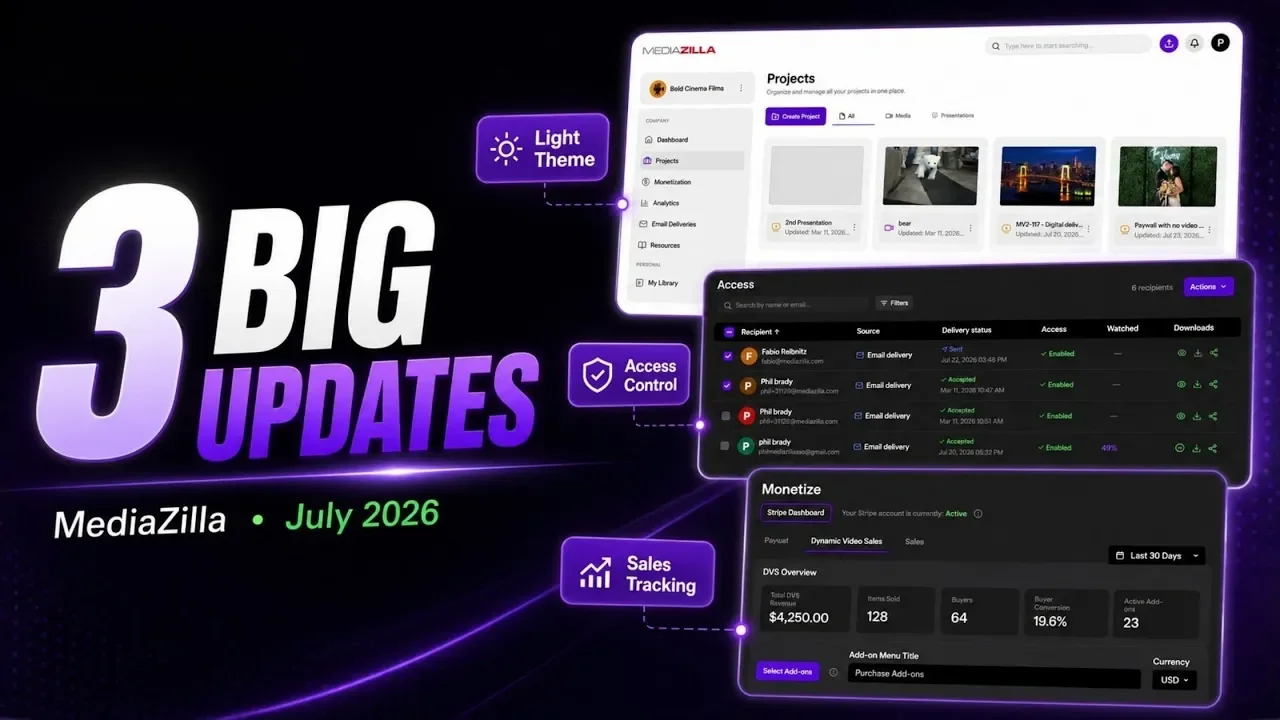
This July we shipped three updates: switch to a lighter interface in seconds, see every viewer and their access in one place, and track your sales without leaving MediaZilla. Here's what's new.
What's New This July
Three updates shipped this month. Each one removes a step you used to take outside MediaZilla, or a setting you used to live with.
- Light theme. Switch the workspace from dark to light from your account menu.
- Access. See every recipient, delivery status, permission, and watch progress on one page.
- Sales tracking. Read paywall and Dynamic Video Sales performance next to the setup that created those sales.
None of these require a new plan, a new presentation, or a migration. They are in the account you already use.
Switch to a Lighter Interface in Seconds
Dark theme is still the default. It is no longer the only option.
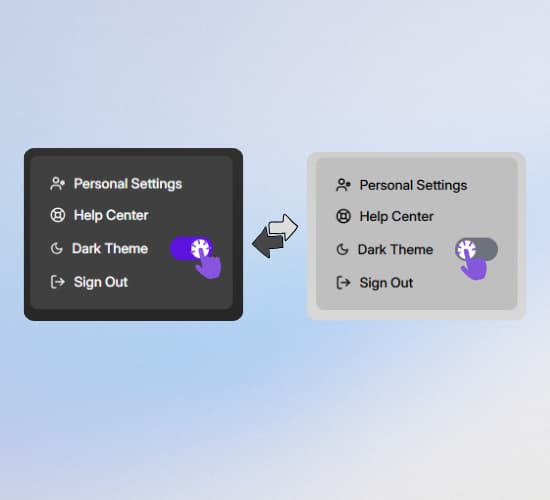
Open your account menu. The Dark Theme toggle sits between Help Center and Sign Out. Turn it off and the workspace goes light. Turn it on and you are back in the darker interface.
The change is immediate. It does not reload your projects, break an upload, or reset filters. Your preference stays with the account, so the next session opens in the theme you left.
When the light workspace helps
Use it when you are reviewing client work in a bright room, sharing your screen on a call, or matching a lighter website and brand kit. The projects list, thumbnails, and navigation stay in the same place. Only the surface changes.
If you prefer the original look, leave Dark Theme on. Nothing about delivery, access, or sales changes with the toggle.
See Every Viewer and Their Access in One Place
You should not have to open three screens to answer one client question: did they get the film, can they still watch it, and have they started?
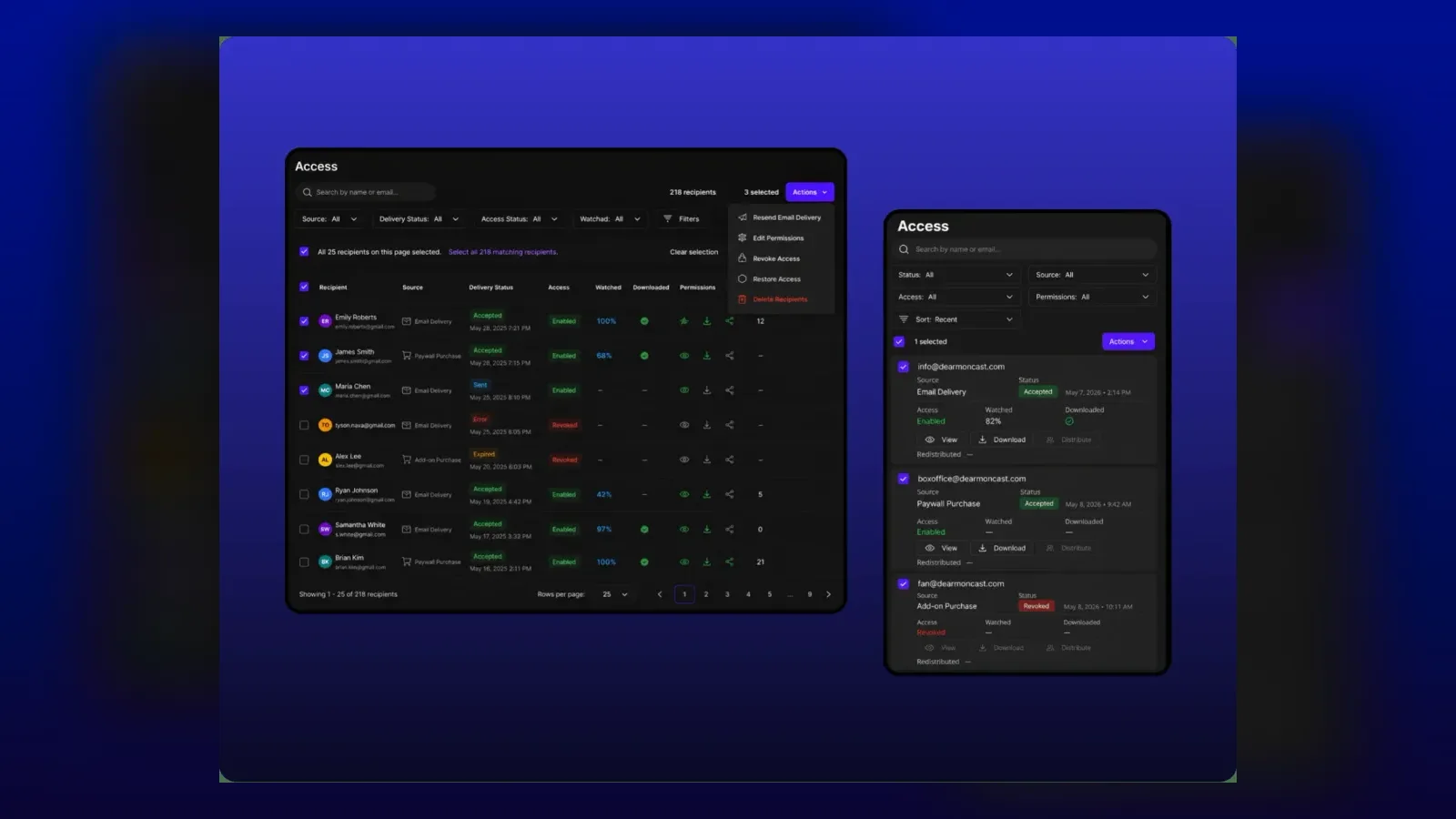
The Access page now answers that on the presentation or video itself. Every recipient appears in one table with the details that used to live in separate places.
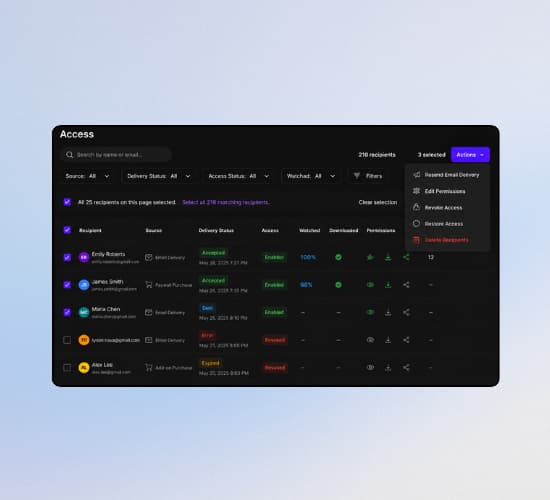
What each row tells you
- Recipient. Name and email for the person who has access.
- Source. How they got in: email delivery, paywall purchase, or add-on purchase.
- Delivery status. Sent, accepted, error, or expired, with a date attached.
- Access. Enabled or revoked, without leaving the list.
- Watched. How much of the film they have played.
- Downloaded. Whether they took a file, if downloads were allowed.
Bulk actions when something goes wrong
Select one recipient or the whole matching list. Actions lets you resend the email delivery, edit permissions, revoke access, restore access, or delete recipients.
That is the difference between a support ticket and a two-click fix. A couple who never opened the delivery email gets a resend. A link that should no longer work gets revoked. A buyer who paid and lost access gets restored without a new purchase.
Search and filters sit above the table. Narrow the list by source, delivery status, access state, or watch progress before you act.
Track Your Sales Without Leaving MediaZilla
You already set prices in Monetize. You should not have to leave that screen to see whether those prices are working.
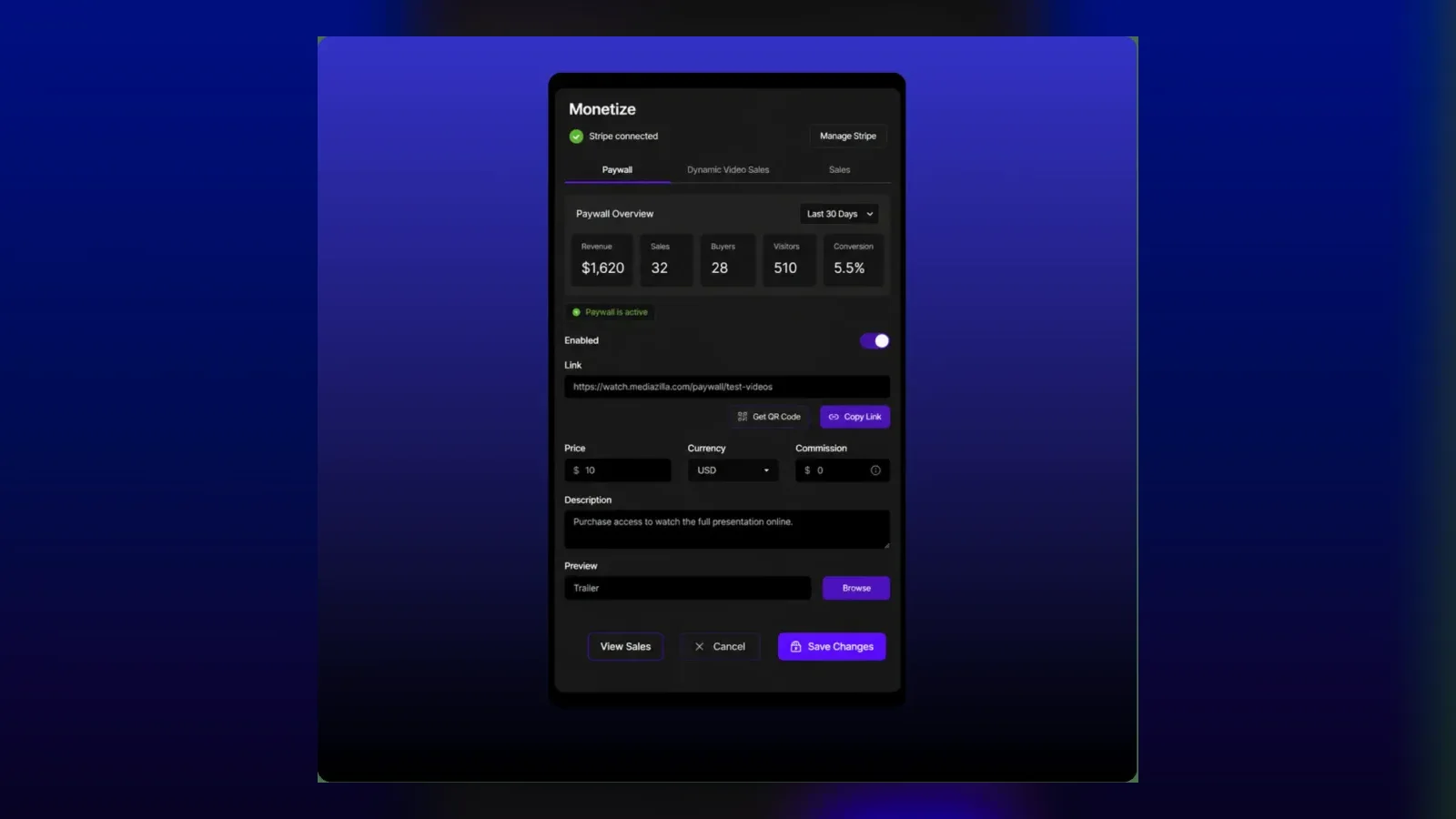
Paywall and Dynamic Video Sales now show last-30-day performance in the same panel as the setup. Revenue, sales, buyers, visitors, and conversion sit above the price, link, and add-on controls.
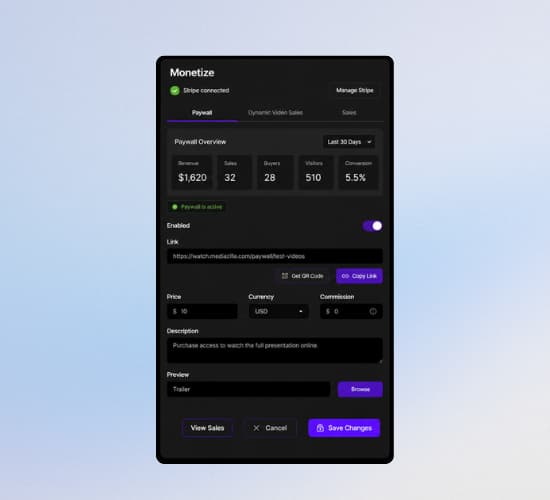
What you can see without opening Stripe
Stripe stays connected for payouts and a full transaction history. For the daily question - is this paywall converting - you no longer need a second tab.
The Paywall tab shows revenue, sales, buyers, visitors, and conversion for the last 30 days, plus whether the paywall is active. The Dynamic Video Sales tab shows add-on revenue, items sold, buyers, conversion, and how many add-ons are live.
Commission still reads $0 on eligible plans. The number is visible next to the price so you can confirm the cut before you save.
How to Start Using These Updates Today
1. Set the theme you want to work in
Open the account menu. Flip Dark Theme off for the light workspace, or leave it on. Spend one minute in each if you are unsure. Keep the one that is easier to look at for a full editing day.
2. Open Access on a live presentation
Pick a film that already has buyers or email deliveries. Confirm that every expected recipient is on the list. Check delivery errors first. Resend anything that never landed. Revoke anyone who should no longer have the link.
3. Read last month's sales in Monetize
Open Monetize and stay on Paywall, then switch to Dynamic Video Sales. Compare revenue and conversion to the price you have set. If a title is getting visitors and no sales, the problem is on that screen, not in Stripe.
These three checks take less time than the workarounds they replace. Use them once this week and they become part of how you run the account.
Frequently Asked Questions
How do I switch MediaZilla to the light theme?
Where do I find the new Access page?
Can I change access for more than one recipient at a time?
What sales data now appears inside MediaZilla?
Does MediaZilla still take a commission on paywall sales?
Do I need to update my presentations to use these features?
Featured Resource
Migrate from Vimeo On Demand before November 20
Apply for a free MediaZilla migration spot. Approved libraries move in 14 days - or we pay you $1,000.
Apply for free migration